
Setting Up Audio-Based Camera Tracking
If your camera doesn’t include built-in tracking, RoomOS can provide automatic audio-based tracking.
To begin, select “Set up camera.”
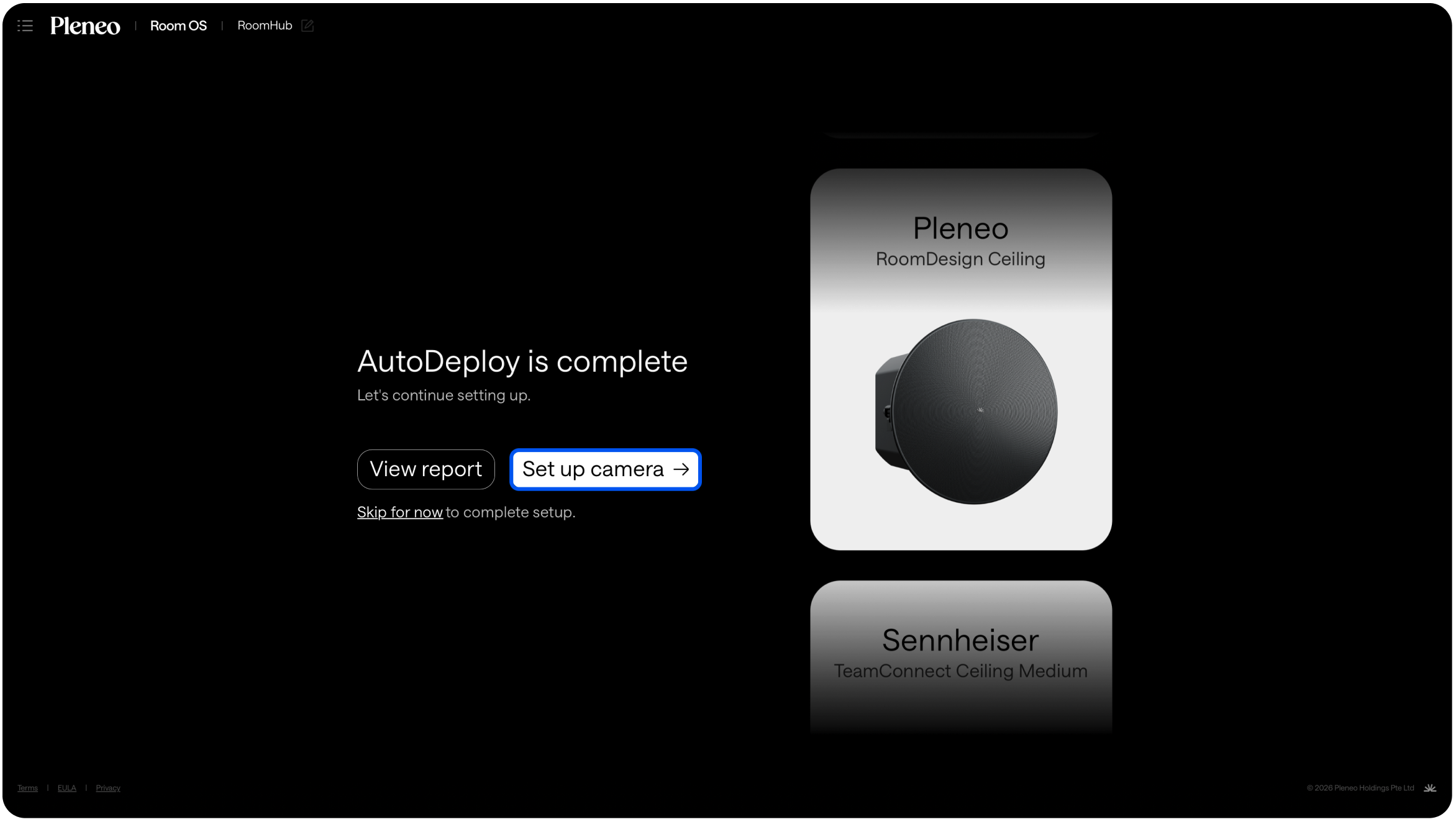
Step 1: Save the Home View
Start by saving a Home View.
This is the full-room view used when no one is speaking.
Use the camera controls to frame the entire seating area
Watch the live preview to see exactly what participants will see
Save the view
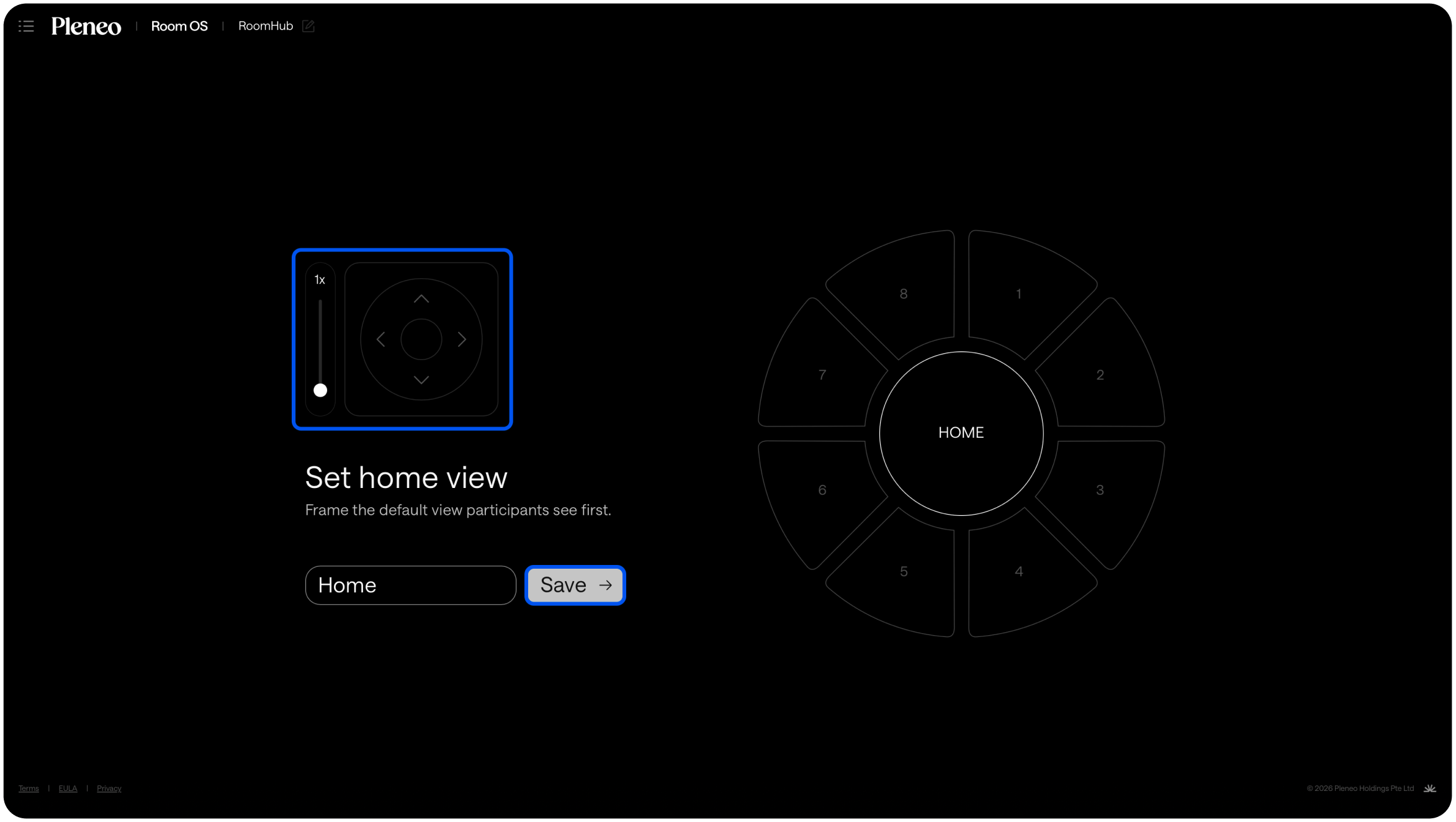
This becomes the default position.
Step 2: Define Speaker Views
Next, choose how many speaker views you want to create.
For example, three zones.
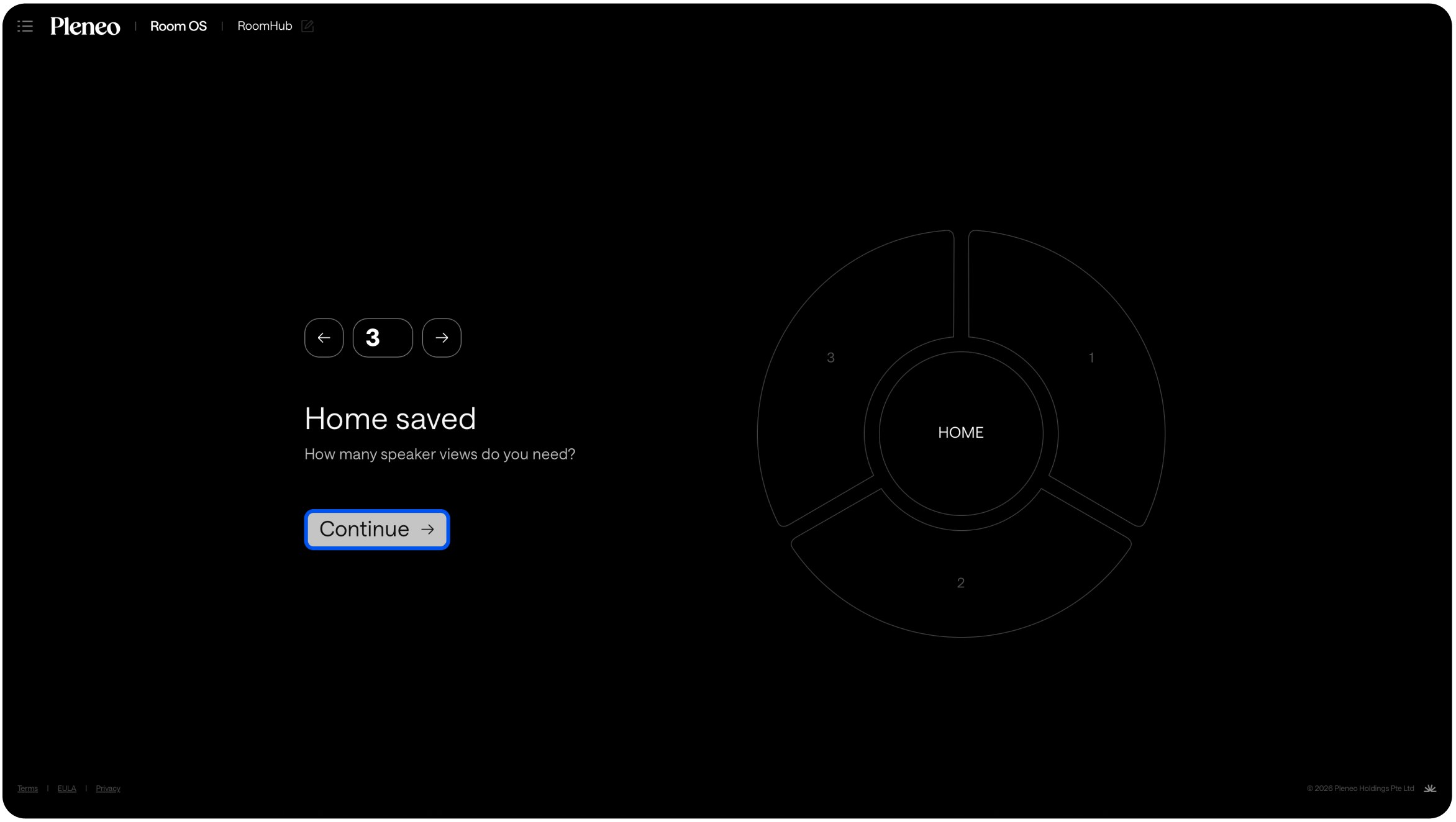
When someone speaks, they appear as a dot on screen.
This shows which zone they belong to.
Have someone sit in each seating area
Ask them to speak
Adjust the framing for that zone
Save the view
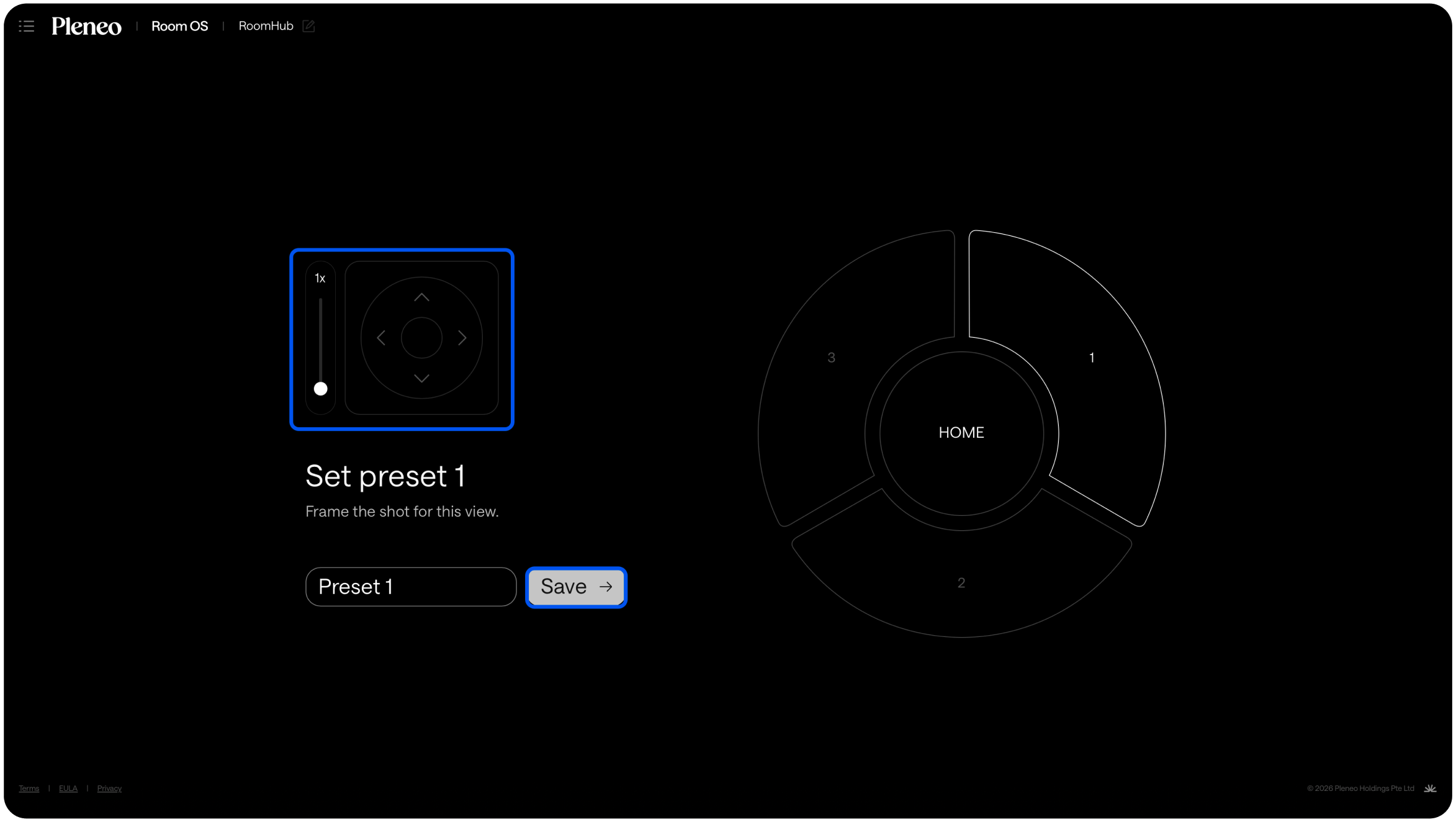
Repeat for each zone.
Once complete, RoomOS automatically switches between views based on who is speaking.
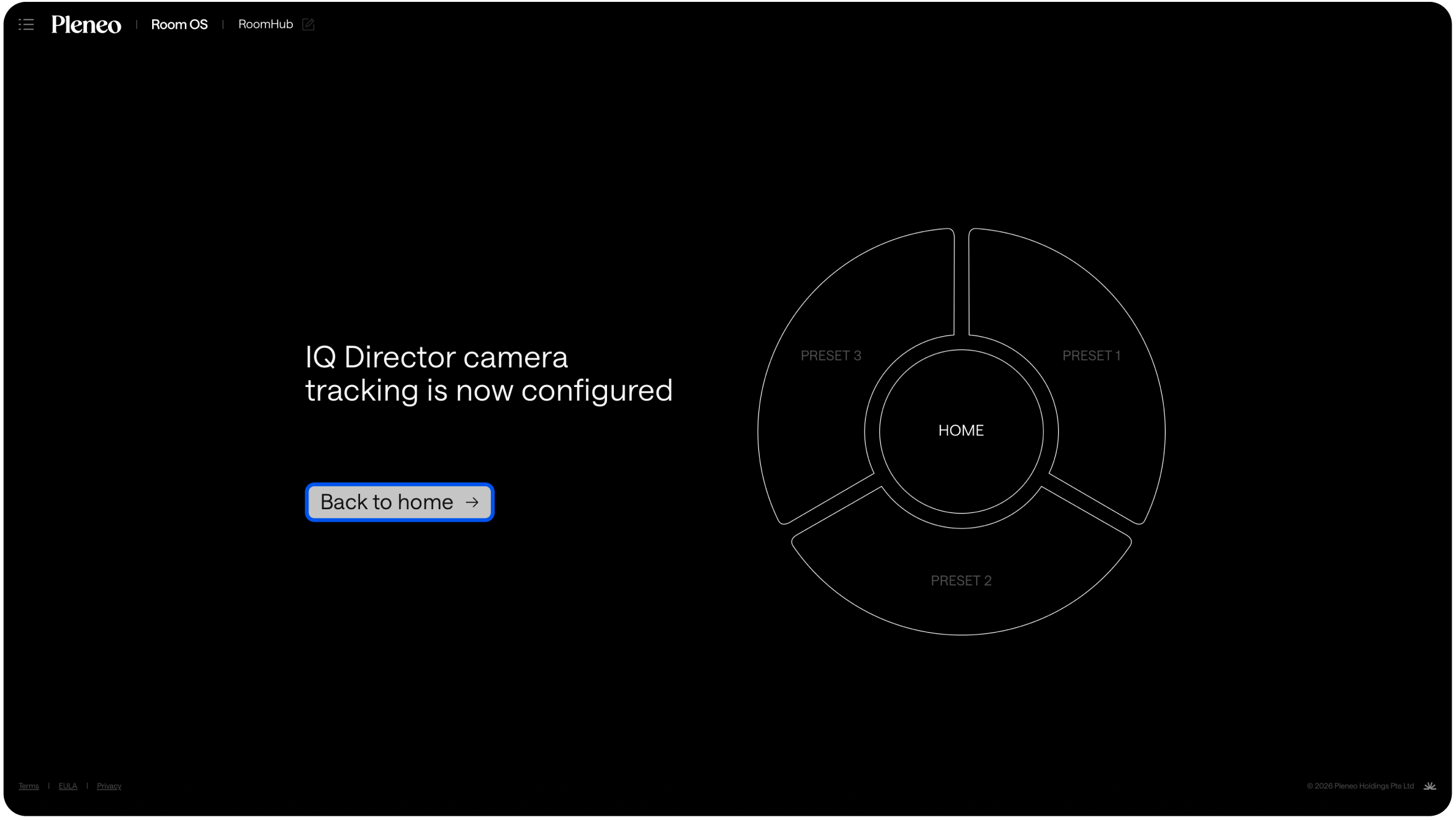
The result is smooth, predictable camera behavior, without manual switching during meetings.