
How to provide third-party access for Sennheiser TCCM using Control Cockpit?
Overview
To use Sennheiser TCCM with a Pleneo Device Hub, you need to enable third-party access in Sennheiser Control Cockpit.
This allows the microphone to communicate securely with RoomHub for control and setup. The process takes only a minute.
Before You Begin
Make sure:
The TCCM is visible in Sennheiser Control Cockpit
You have access to the microphone’s settings
No room changes or restarts are required.
Enable Third-Party Access
Follow these steps in Sennheiser Control Cockpit.
1. Open Access Settings
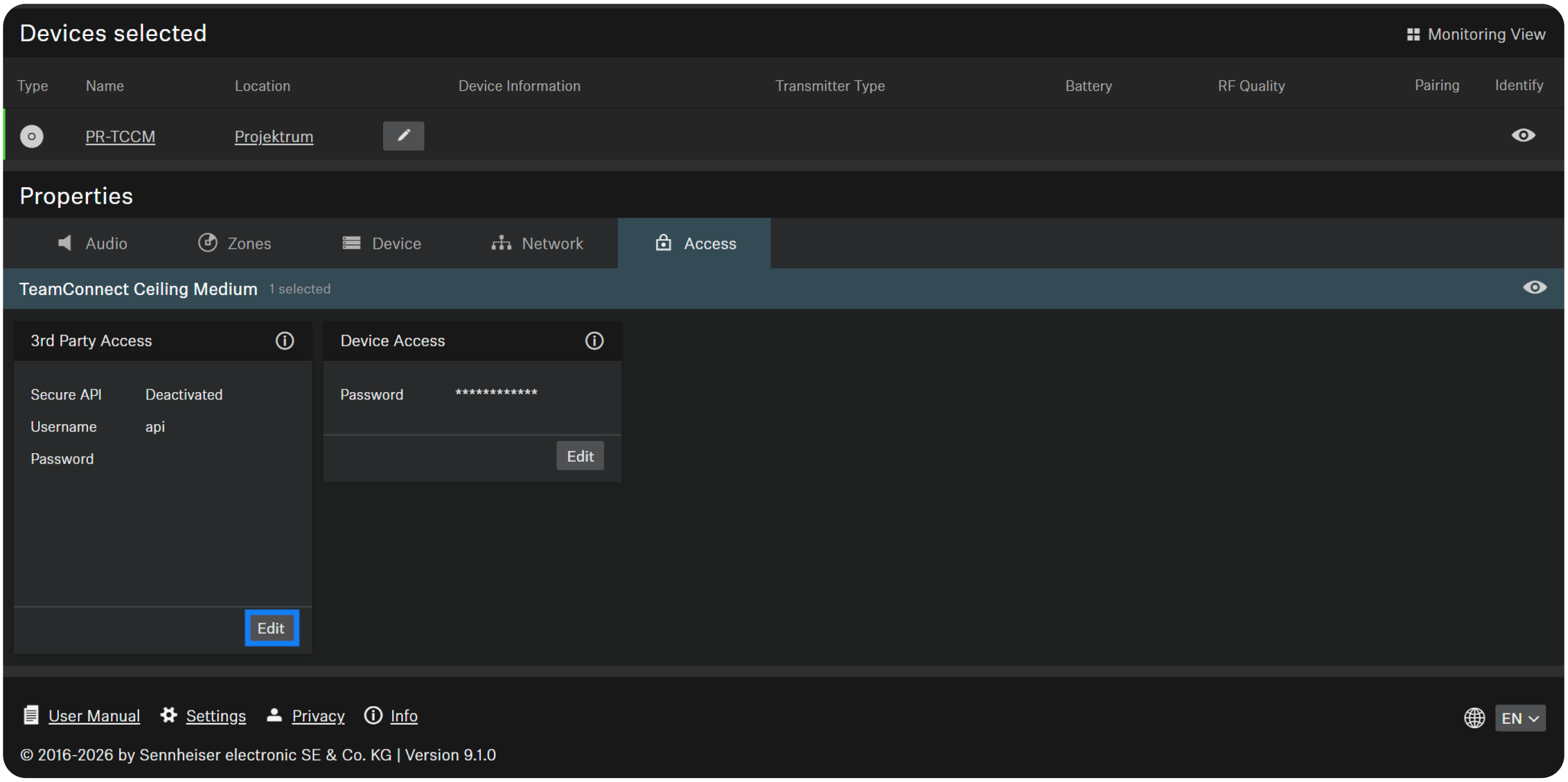
Go to Properties
Open the Access page
Select Edit in the 3rd Party Access section.
2. Activate Secure API
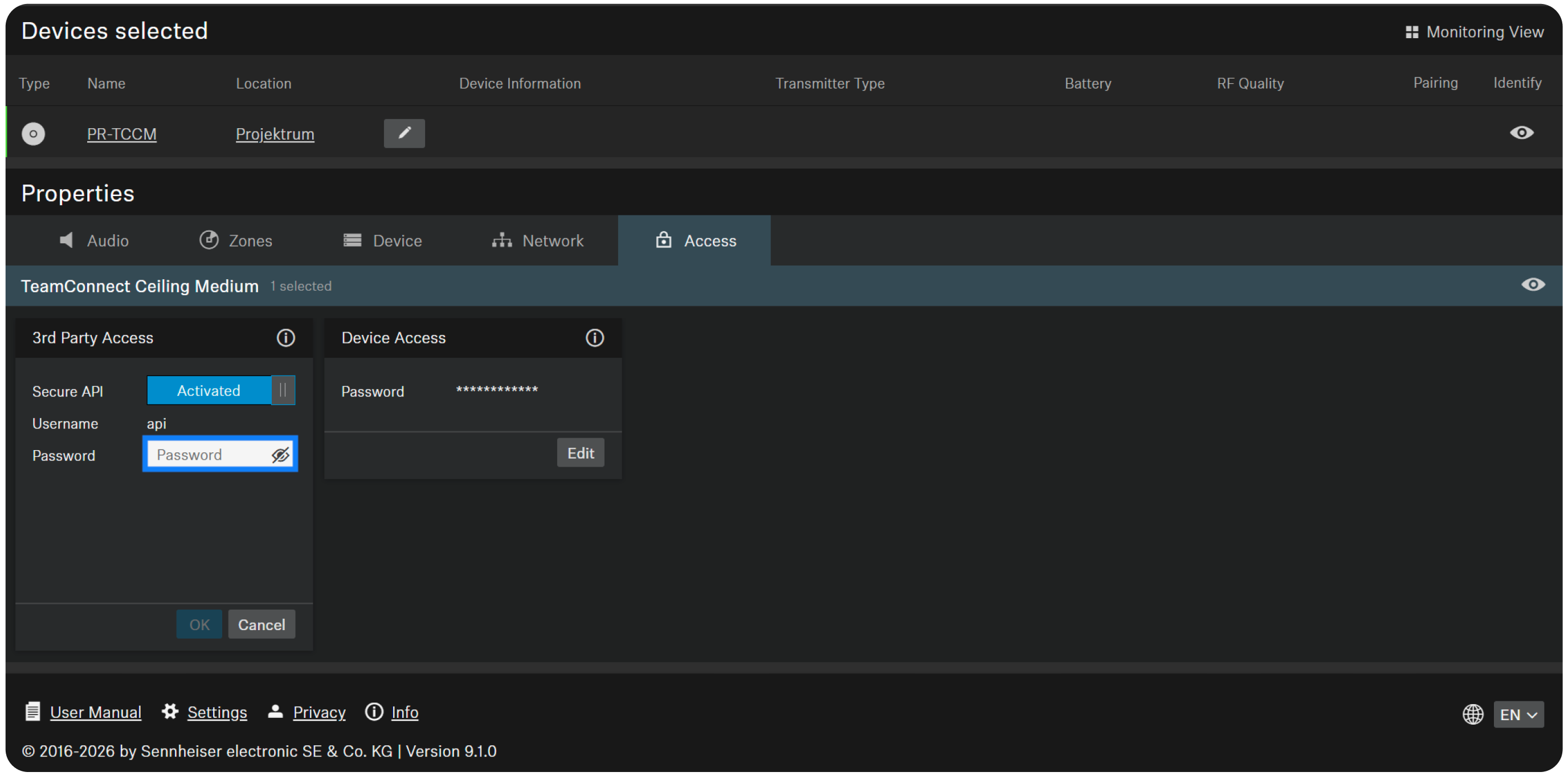
Turn on Secure API so it shows Activated
Set a password
Select OK
That’s it. The microphone is now ready.
Important Note
Keep the password handy.
You’ll need it later when adding the microphone in the Pleneo Room OS during system setup.
In Summary
To connect a Sennheiser TCCM to a Pleneo Device Hub:
Enable 3rd Party Access in Control Cockpit
Activate the Secure API
Set and save a password
Once enabled, the microphone is discovered automatically.
Pleneo RoomOS takes care of the rest.