
Replacing a RoomHub
Overview
If a RoomHub ever needs to be replaced, Pleneo Cloud will notify you automatically.
If your organization has integrated the Pleneo Cloud API into your ticketing system, you’ll simply receive a new ticket stating that the RoomHub needs replacement.
RoomHub replacements can be done in two ways:
Cloud Replacement using Pleneo Cloud
Local Replacement using AI AutoDeploy
Replace via Pleneo Cloud
When using Pleneo Cloud, replacing a defective RoomHub takes just a few minutes.
Log in to Pleneo Cloud and locate the defective RoomHub in your list of rooms.
Select Replace.
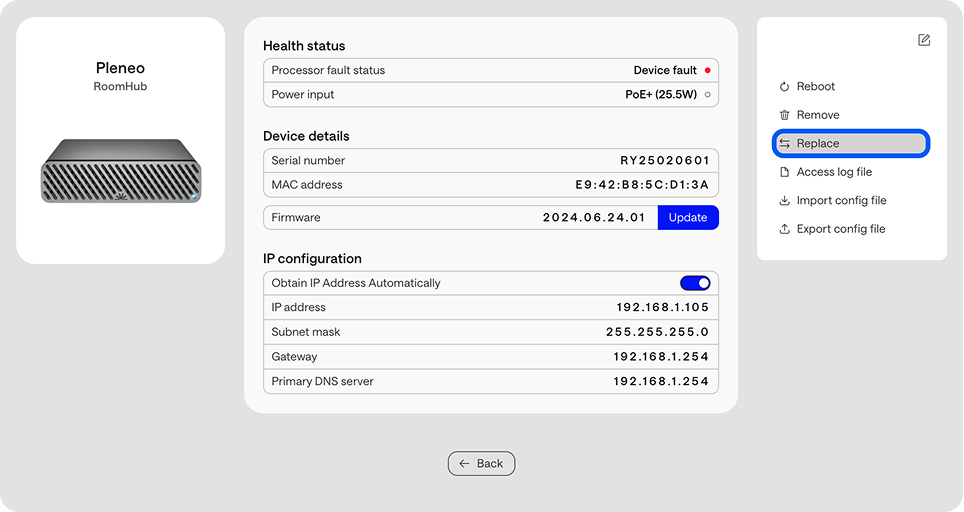
Enter the MAC address of the new unit, either one you’re bringing to site or a spare already on-site
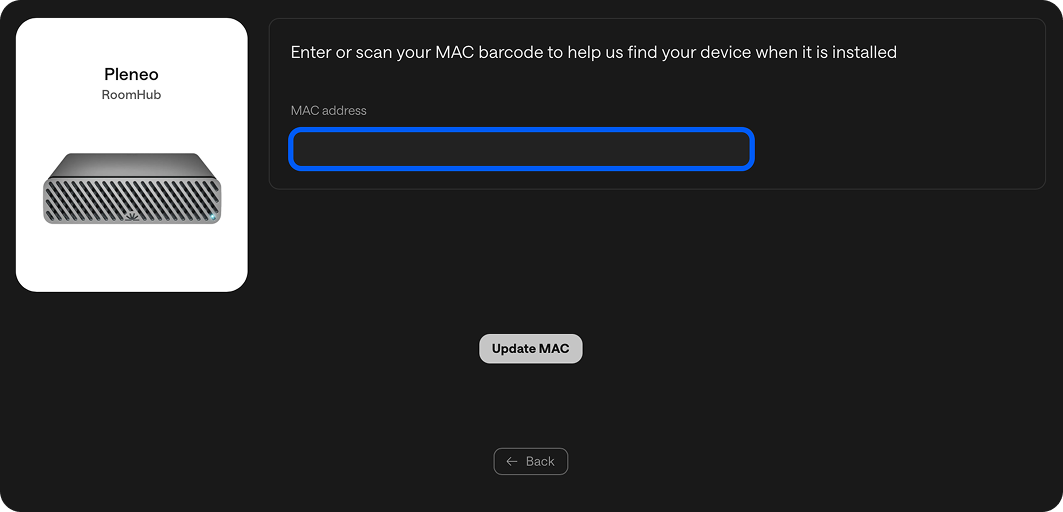
Once the new RoomHub connects to the internet, it automatically:
Calls back to the cloud
Downloads the complete system image
Restores all AI tuning and configuration
Your system is back online within minutes, fully configured and optimized, no manual setup required.
Local Replacement
If you’re not using Pleneo Cloud, you can still replace a RoomHub locally.
Bring a new RoomHub to the site.
Connect it to the network.
Open the embedded web interface.
Re-assign the devices to your RoomHub.
Run AI AutoDeploy™ to automatically discover devices, configure audio routing, and tune the room.
This process restores full system performance, completely offline.
When to use each method
Method | Internet Required | What it does | Ideal for |
|---|---|---|---|
Cloud Replacement | Yes | Automatically restores full system image, tuning, and configuration | Managed or large-scale deployments |
Local Replacement | No | Runs full setup and tuning via AI AutoDeploy | Offline or secure environments |
Result
Whether you’re online or fully offline, RoomHub can be replaced and reconfigured quickly. Without disruption and without complexity.